Lines are perfect for connecting ideas or creating structure within your board. You can use them to add arrows, separators, or composition guides.
- Select the Line action from the Create menu, the toolbar, or press 1.
- Click and drag on the canvas to draw a line.
- If you start and/or end the line on an object, the line stays connected to that object even if you move the object(s).
- Adjust opacity, line color, and the start/end design in the context-sensitive menu.
- Double-click the line to add a text note in the middle of it.
Text elements let you annotate your boards, add titles, or label groups of references.
- Select the Text action from the Create menu, the toolbar, or press 2.
- The newly created text can be placed anywhere.
- Resize the text box easily by dragging its corners.
- Change font, color, size, and alignment in the context-sensitive menu.
One text object supports multiple fonts and colors, so you can style your notes for clarity or hierarchy.
Drawing
Section titled “Drawing”The Drawing action lets you sketch directly on the canvas for quick markups, composition lines, or feedback. It’s ideal for visual thinkers who prefer to jot down notes or shapes by hand.
- Select the Draw tool from the Create menu, the toolbar, or press 3.
- Click and drag to draw freehand strokes.
- Switch between draw/erase mode, select a predefined color, or use the color picker from the left-side menu.
- Adjust the draw radius with S + drag.
- Enable the color picker quickly by holding Alt.
- Enable eraser mode quickly by holding Ctrl.
- Draw a straight line with Shift + click.
Shapes give structure to your board layouts and can be used for backgrounds, overlays, or framing visual areas. Supported shapes include rectangles and circles.
- Create a shape from the Create menu.
- Click and drag to create a shape.
- The newly created shape can be placed anywhere and scaled easily by dragging its borders.
- Adjust color and border size/type in the context-sensitive menu.
- Double-click the shape to add a text note in the middle of it.
- Resize the shape by dragging its borders. Hold Ctrl to adjust it non-uniformly.
Shapes can also be layered or grouped with other objects to form design grids or frames.
Social media video downloading
Section titled “Social media video downloading”You can paste any video URL from almost any social media platform into FrameRef, and it will automatically download and place the video in your board.
To use this feature, open the Downloader from the Create menu or with Ctrl + Alt + Shift + D. Once you have pasted your URL, the downloading process starts and you can see the progress on your board.
For some sources, you can even copy-paste your video URL directly onto the canvas.
Upon success, your video is added to your board and is also accessible in your project folder. Select the video in the board and press Ctrl + Shift + O to open the source folder.
On some sources you can even drag and drop your videos onto the board. For example, from YouTube you can drag and drop from the YouTube title area onto FrameRef to start the download.
Color swatch
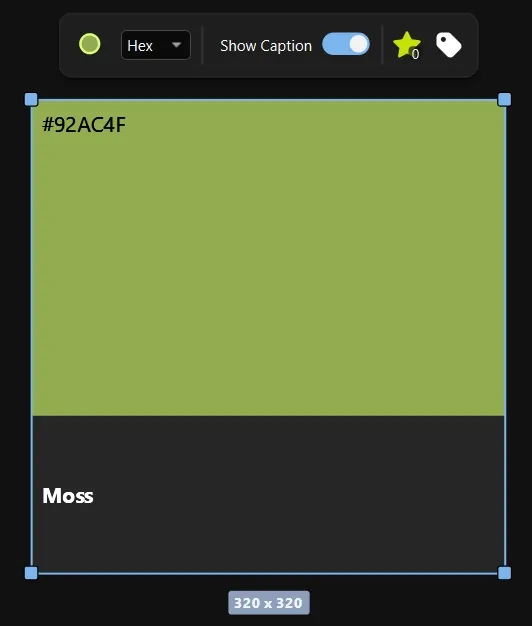
Section titled “Color swatch”A color swatch is an item where you choose a color and see its name and color code. Perfect for moodboards.
Note item
Section titled “Note item”The Note item lets you add rich text, to-do lists, images, and GIFs directly to your boards. Whether you’re planning a project, collecting feedback, or simply organizing ideas, Notes make it easy to keep everything in one place.
Portals
Section titled “Portals”To make it easier to navigate large boards, we added a new item type: Portals. This feature lets you create a portal at location X and a linked portal at location Y.
Once you have opened Portal Mode, you can pan with middle-mouse drag, zoom with scroll, and then place the first and second portal using the left mouse button.
Once they have been placed, select a portal and either hit T or the teleport button in the context-sensitive menu to teleport to the second portal. If you need to adjust the pan or zoom for a portal, update it with the square-with-a-dot icon in the context-sensitive menu.
Voice memo
Section titled “Voice memo”You can now record voice memos directly in FrameRef. Find it in the FrameRef search. In the voice memo window, you can:
- Start and stop the recording.
- Play the recording.
- Trash the recording.
- Adjust the input volume.
- Adjust the input device.
- Trim the recorded voice with the yellow brackets.
Next steps
Section titled “Next steps”Now that you know all about the Create Actions, let’s explore the other actions in FrameRef!