
Homepage
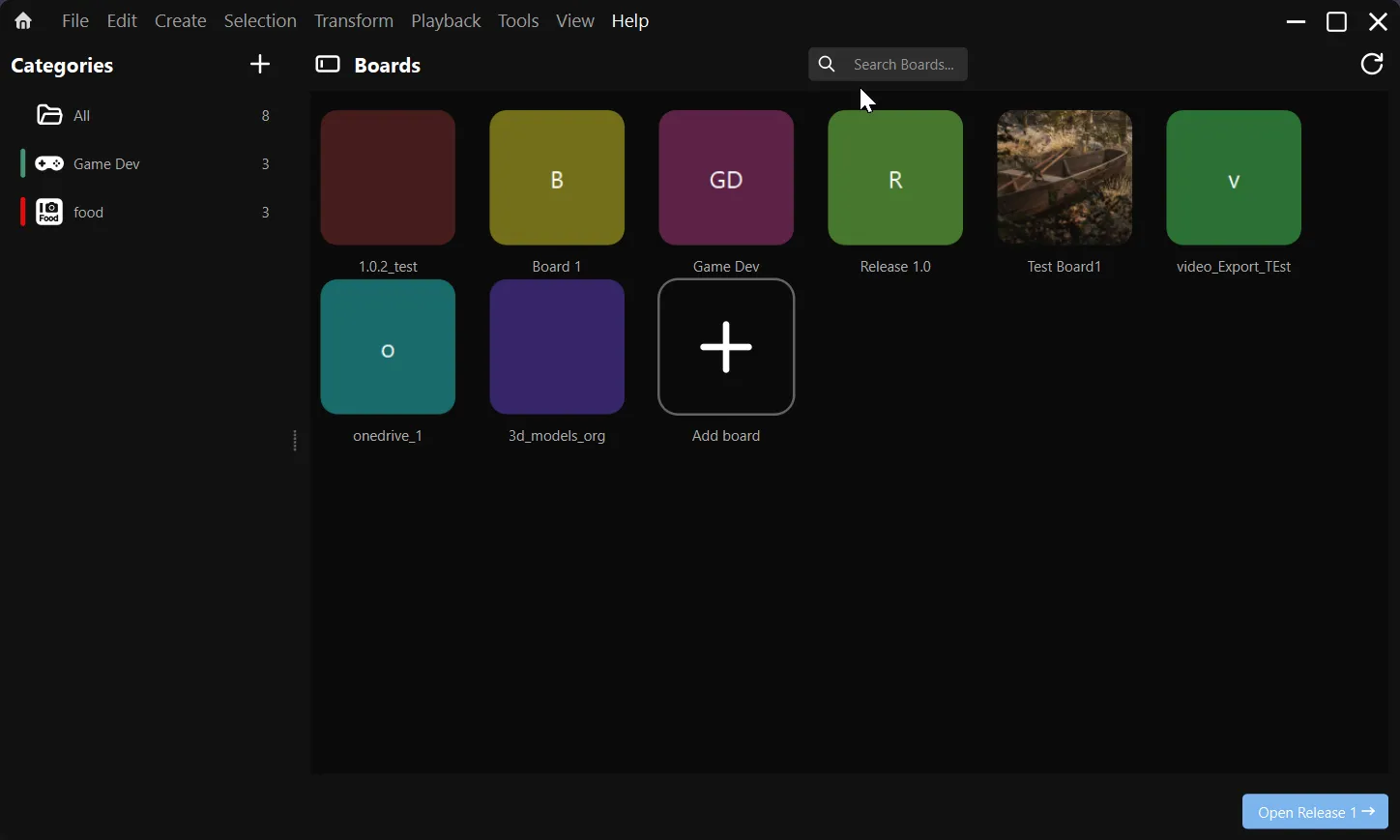
Section titled “Homepage”On the FrameRef homepage, you have four main options:
- Browse your boards.
- Search among your boards.
- Create a new board.
- Organize your boards by category in the left-side panel.
You can also right-click any board to rename it, reveal it in the file explorer, or delete it.
Language selection
Section titled “Language selection”The default language in FrameRef is English, but you can switch to any of the following:
- English
- Russian
- Swedish
- Mandarin Chinese
- Chinese Taiwan
- Chinese Hong Kong
- Spanish
- Hindi
- Portuguese
- Bengali
- Japanese
You can change this from Edit → Preferences → System → Languages.
Canvas basics
Section titled “Canvas basics”FrameRef’s canvas is fully interactive and infinite, letting you move and zoom freely.
- Pan — Middle-mouse drag, or two-finger drag on a touchpad.
- Move the FrameRef window in Frameless Mode — Hold the right mouse button and drag, or press and drag two fingers on the touchpad.
- Select multiple — Left-mouse drag.
- Zoom — Scroll wheel or trackpad pinch.
- Focus — Press Space or double-click with the left mouse button, then press Space or double-click again to return to the previous view.
- Display item types — Hold I on the keyboard.
The toolbar
Section titled “The toolbar”In the top middle of FrameRef, you will see your toolbar with the 5 most used actions and the search bar. These 5 actions correspond to 1–5 on your keyboard.
- Create Line
- Create Text
- Start Drawing
- Crop
- Arrange
This toolbar can be hidden with Shift and customized with the gear icon.

Main menu
Section titled “Main menu”In the main menu, located in the top left corner, you have all your standard sub-menus:
| Menu | What it contains |
|---|---|
| File | Save/open/switch project, and more. |
| Edit | Basic Undo/Redo, copy/paste settings, and preferences. (Undo history is currently unlimited — open it with Ctrl + Shift + Z.) |
| Create | Creation actions such as Line, Text, Draw, Shapes, and the Social Media Video Downloader. |
| Selection | Selection actions such as frame, group, bring back/front, and alignment. |
| Transform | Transformation actions such as Flip, Reset, and Normalize. |
| Playback | Playback controls. |
| Tools | Item tools such as crop, color palette, and frame extraction. |
| View | Settings for customizing the FrameRef window, for example opacity. |
| AI | Items related to the AI features in FrameRef. |
| Help | An about section and the License Manager. |
Context menus
Section titled “Context menus”You can also find the available features, tools, and actions in the context menus. Right-click any item to see the most relevant options for easy access.
Object selection menu
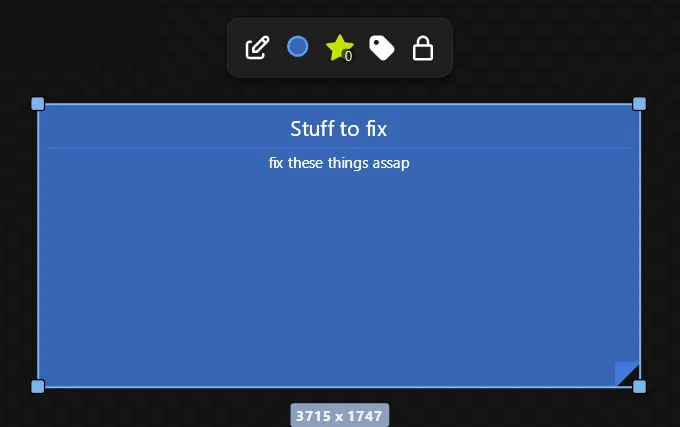
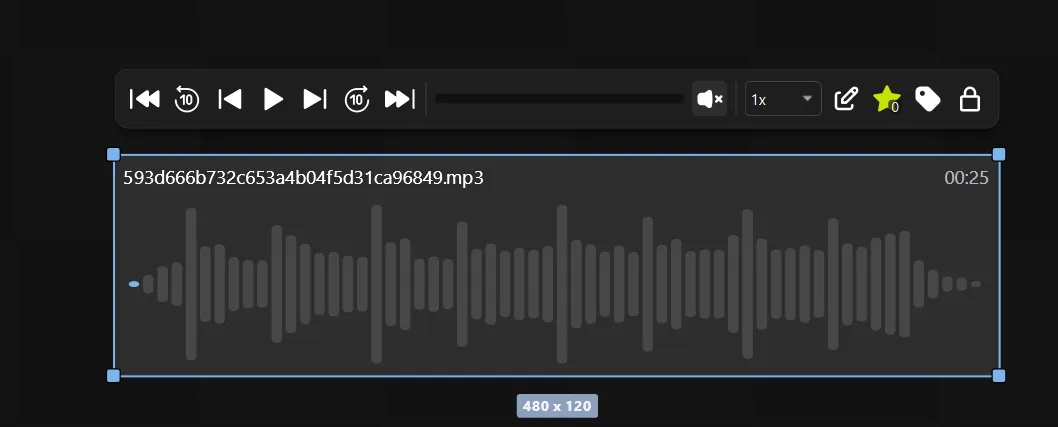
Section titled “Object selection menu”Depending on what you select on your canvas — an image, a PDF, a group, and so on — a different menu appears above the selected object.
- Opacity slider
- Color Grading
- Rating System — affects search result sorting
- Tag Editing — add or remove tags so the image can be found in the search bar

- Opacity slider
- Color Grading
- Player Controls
- Frame Slider
- Volume
- Playback Speed
- Rating System
- Tag Editing
- Trimming (videos only)

- Page Controls
- Page Slider
- Page Select — view and select any of the available pages
- Rating System
- Tag Editing

- Opacity Slider
- Color Grading
- Group Title
- Rating System
- Tag Editing
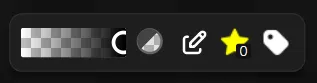
- Opacity Slider
- Color Grading
- Start Design
- End Design
- Rating System
- Tag Editing

- Text Color
- Highlight Color
- Background Color
- Text Transform — Bold, Italicize, and Underline
- Font
- Font Size
- Alignment
- Clear Formatting
- Rating System
- Tag Editing

- Color Picker
- Border Size
- Border Type
- Reset Button
- Rating System
- Tag Editing

- Opacity Slider
- Rating System
- Tag Editing

- Edit Note
- Color Code Type
- Rating System
- Tag Editing
- Player Controls
- Frame Slider
- Volume
- Playback Speed
- Rating System
- Tag Editing
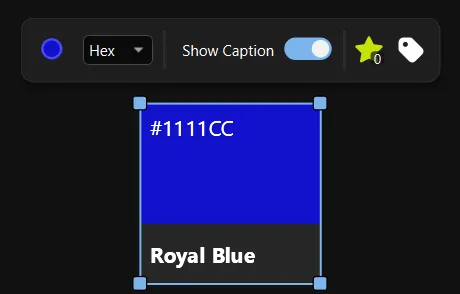
- Color Picker
- Color Code Type
- Caption Toggle
- Rating System
- Tag Editing
Next steps
Section titled “Next steps”Now that you know the FrameRef UI, you’re ready to explore further: