FrameRef 1.0.3 release notes
Section titled “FrameRef 1.0.3 release notes”FrameRef 1.0.3 focuses on workflow improvements, tablet and pen usability, new color tools, and overall quality-of-life enhancements across the application. This release also includes a large number of stability fixes, media workflow improvements, and UI refinements to make the overall experience faster, smoother, and more intuitive for daily use.
Downloading & installing
Section titled “Downloading & installing”Use the Check for Updates action in the Help menu, or download directly:
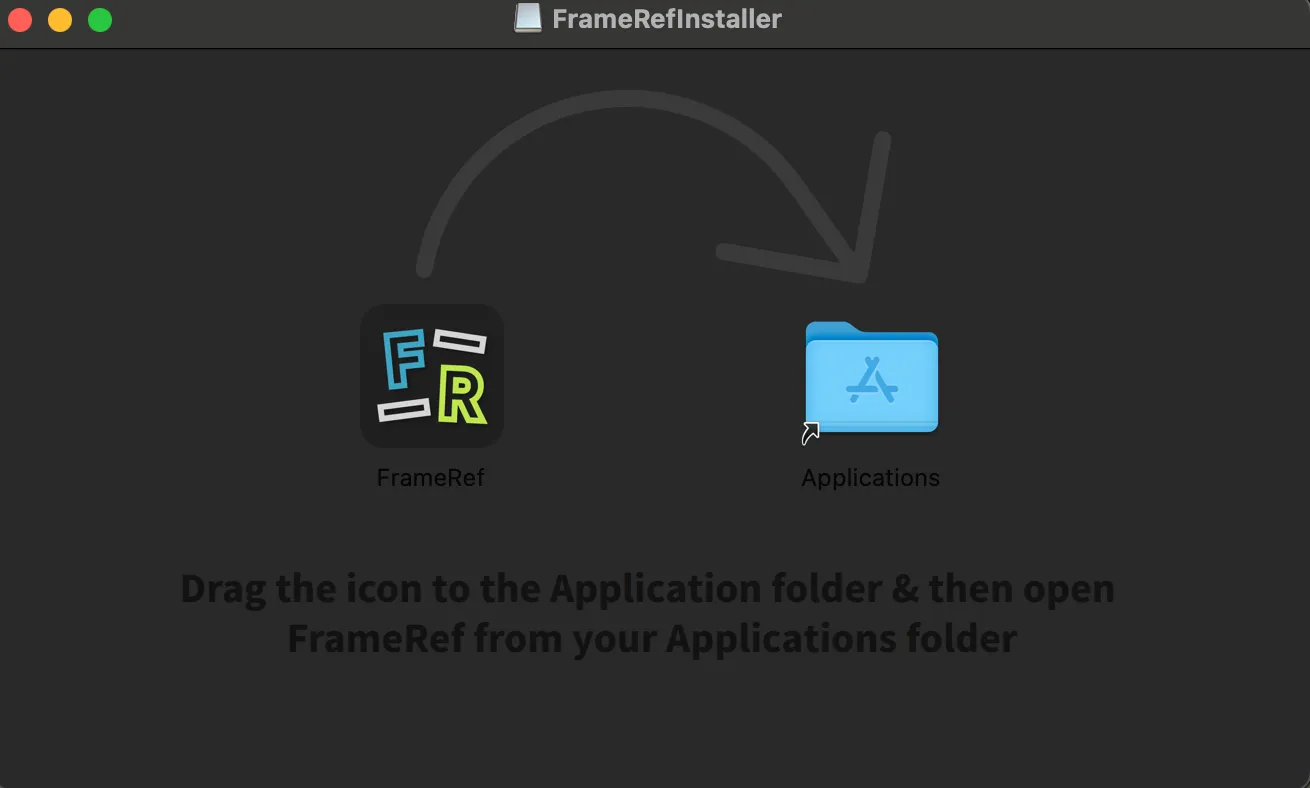
First move the FrameRef folder from your Applications folder to your Bin, then download the latest version and follow the installation instructions. This release starts using the normal macOS drag-and-drop installation workflow.
New features
Section titled “New features”New context menus
Section titled “New context menus”We added a right-click context menu to FrameRef. Depending on your selection, you only see the useful actions when right-clicking. Two new actions available in the context menus are:
- Copy Image Data — Quickly copy the image so it can be pasted into other applications.
- Copy File Path
Homepage organization
Section titled “Homepage organization”You can now add categories to the homepage and organize your boards.
Expand the category list with the icon next to the Boards title, or by dragging from the left side inwards. There you can create new categories, open and view your categories, and drag and drop your boards into them. Right-click a category to edit its name, color, and icon, or to delete it.
Color & sampling
Section titled “Color & sampling”As colors are very important for most reference boards, we made some improvements and added new tools.
- Color Swatches — A color swatch item that displays the color code (HEX, RGBA, or HSL) and the color name.
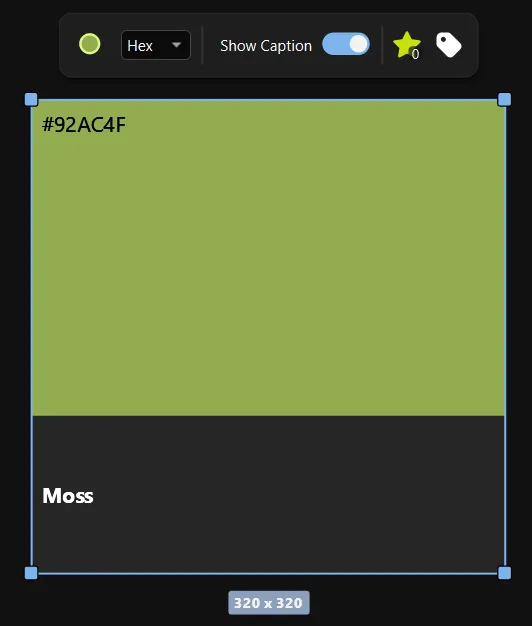
- Color Palette — Extract a color palette from any object. Choose between 1–12 colors.
- Global Color Sampler — With S + left mouse button click, you can see the color name and copy it from any object on your board.
- Custom Color Picker Color — In the general Color Picker, you can add up to 9 of your own favorite colors for quick access.
Graphics/display tablet support
Section titled “Graphics/display tablet support”We added several preference options to support graphics and display tablet workflows:
- An alternative way of panning and zooming.
- An alternative way of changing brush size when drawing.
- A way to show context menus to the left side of the pointer for right-handed users.
- A way to disable the double-click action, or map it to right mouse click (often needed for tablet users).
Draw Mode
Section titled “Draw Mode”- Added industry-standard shortcuts for changing brush size with [ and ].
- Added a way to draw straight lines with Shift + click.
Video & GIF
Section titled “Video & GIF”- You can now choose the target width when exporting a video from the trim editor, or export it as a GIF.

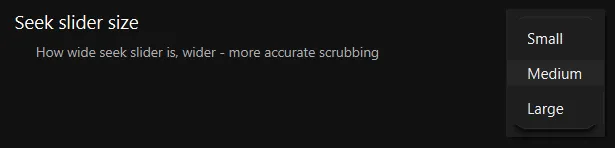
- Added a preference to change the seek slider length to make it easier to scrub through longer videos.
Canvas and alignments
Section titled “Canvas and alignments”- Normalize by height and width.
- Automatic grid snapping — Once you move an object, it automatically snaps to the invisible grid. The grid size can be controlled in the preferences.
- Resize snapping — Hold Shift while resizing an object to see guides for easy snapping.
- Align by X and Y center — The median X or Y values are used for alignment.
Others
Section titled “Others”- Display item types by holding I on the keyboard.
- Reset Preferences by category — Right-click any preference category to reset only that category.
- Text items are now available in Search.
- Full Screen Mode is now also available on Windows, located in the View menu.
Improvements
Section titled “Improvements”Performance & stability
Section titled “Performance & stability”- Improved video memory usage by reducing GPU decoding overhead.
- Added automatic cleanup of temporary project folders.
Workflow & usability
Section titled “Workflow & usability”- Added shortcut conflict detection.
- Improved item movement behavior to avoid accidental micro movements.
- Improved preference search and reorganized the settings layout for better navigation.
- Split the crowded “Items” menu into smaller dedicated menus.
UI & visual polish
Section titled “UI & visual polish”- Improved video trimming feedback with an on-canvas progress display.
- Updated hover styling for close buttons on Windows.
Platform & integration improvements
Section titled “Platform & integration improvements”- Improved the macOS installation workflow using standard DMG behavior.
- Added support for drag & drop GIFs from eyecannndy.com and other similar GIF websites.
- Improved handling of high-resolution image fetching. For example, when dragging images from Google, you will most often get the high-resolution version.
Bug fixes
Section titled “Bug fixes”Video & media handling
Section titled “Video & media handling”- Fixed video playback state resetting while scrubbing.
- Fixed videos not being automatically arranged after being added.
Drawing & editing
Section titled “Drawing & editing”- Fixed dangling drawing strokes when opening a level during drawing.
- Fixed a bug in center items when deleting the last character.
Drag & drop & grouping
Section titled “Drag & drop & grouping”- Fixed a regression when dragging an item onto a group.
- Fixed issues when dropping images directly from Google Search.
UI & platform fixes
Section titled “UI & platform fixes”- Fixed the license key input not accepting lowercase characters.
- Fixed an incorrect project name appearing in the macOS window title.